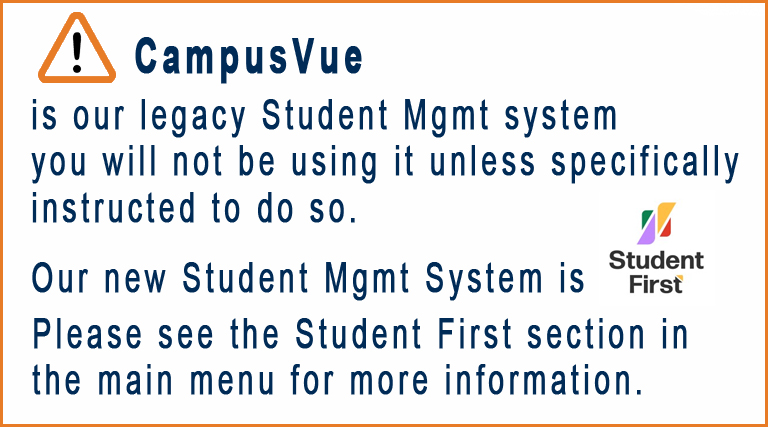

NOTE: CampusVue Portal is offline and no longer in use. Please navigate back through the Main Menu
Below are some quick navigation starters. For full instructions please consult your Department Head
The Faculty Portal: (Instructional Staff)
finding the portal?
The Network Department provides a shortcut on every desktop, however, if you are at a computer that has no shortcut then you can simply navigate to myportal.iticollege.edu and choose faculty portal from the login dropdown.
your portal login?
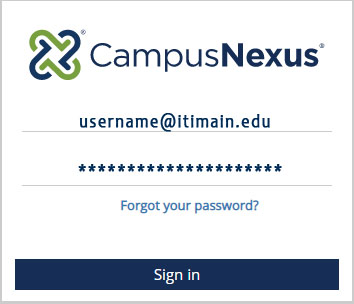
The Faculty Portal uses your ITI office credentials from itimain.edu. Therefore, when you log into the portal you must include the “@itimain.edu” with your username
Classes and gradebook
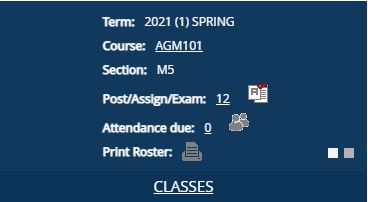
on your home page you’ll see the classes that you are assigned to. If you click on the link titled CLASSES it will bring you directly to your gradebook and roster.
*Rosters can only be printed the day of the scheduled class.
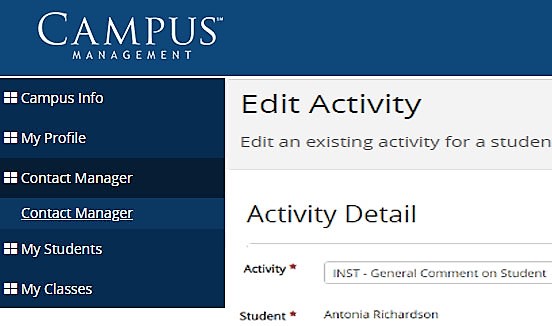
student retention
If a student misses class you’ll want to reach out to them and you’ll want that contact to be tracked. In those cases you’ll use the Portal Contact Manager. We have added specific activities such as “Instructor text to student” or “received phone call from student” for that purpose.
CampusVue Student Software: (Administrative Staff)

There is a shortcut to CampusVue on every Office Computer’s desktop (pictured left) clicking this icon will log you onto the CampusVue Server using your itimain.edu credentials.
On the CampusVue Server, double clicking the “CampusNexus” icon will launch the software. A sign-in box will appear but you may disregard it, as CampusVue already has your credentials.

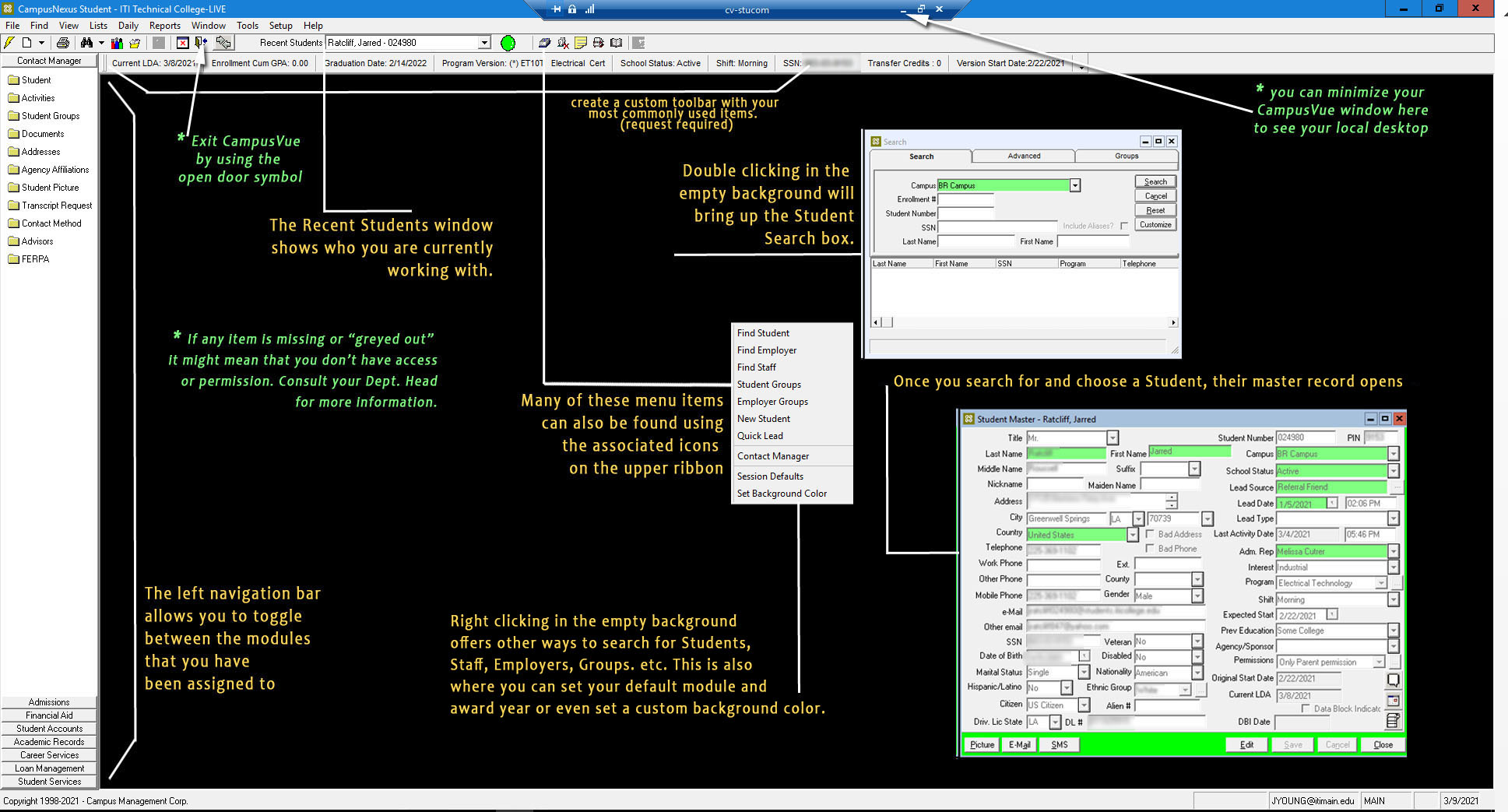
CampusVue’s Main Interface- (click image to view larger)